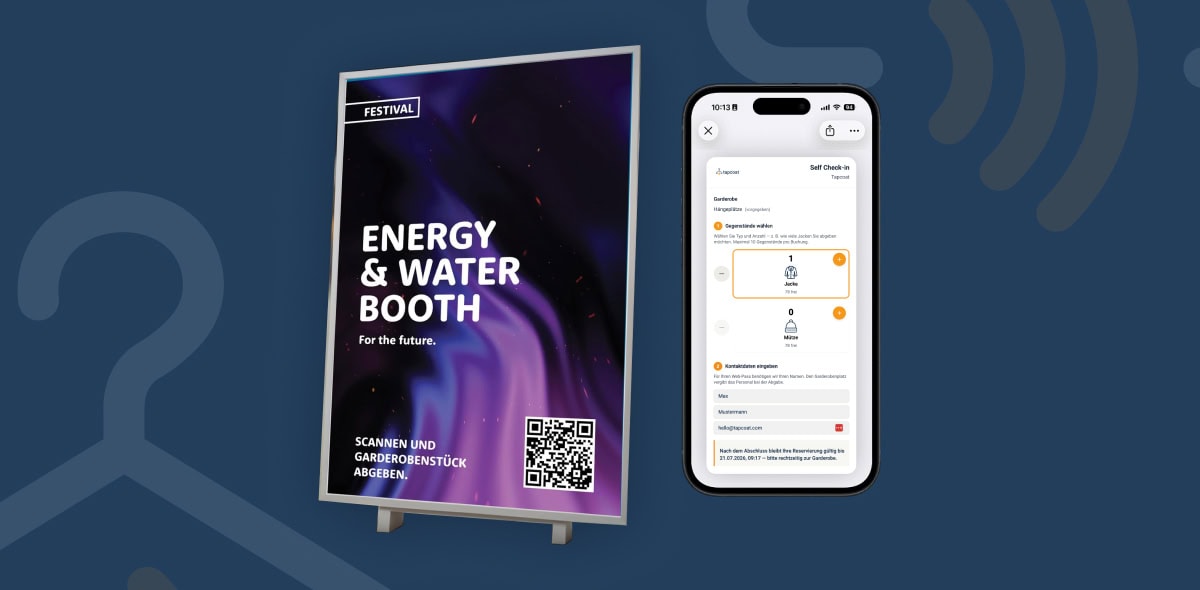


Creating and managing multi-day events
Trade shows, festivals, conferences, or multi-day corporate events run over several days. In Tapcoat, such an event is created as a single event — not as a series of individual events. This saves configuration effort and keeps all data together in one place.
One event, several days
When creating the event, simply choose an end time that matches the last day of the event. All days in between automatically run under the same event. Staff work every day with the same logins, the same cloakrooms, and the same app settings.
Example of a three-day trade show:
- Event name: “Trade Show XYZ 2026”
- Start: Wednesday, 8:00 a.m.
- End: Friday, 8:00 p.m.
- Cloakrooms: “West Entrance” and “East Entrance”
All check-ins and checkouts over the three days are grouped under this one event and can be analyzed together in the dashboard.
Guest passes at multi-day events
If a guest drops off their jacket on day 1 and picks it up the same day, their wallet pass is invalid afterward. If they come back on day 2, they receive a new pass at their next check-in.
If a guest leaves their jacket for several days — for example at a multi-day conference with an overnight stay — their pass remains valid until they pick up the jacket. In this case, the hanger location stays reserved for the entire duration.
Note on the Event day pass plan: On the Event day pass plan, the validity period is limited to 72 hours. For multi-day events where guests want to leave their belongings for more than three days, you need at least the Starter plan. For plan details, see the article “Plans & pricing compared”.
Staff planning for multi-day events
Staff don’t need to be set up or invited again every day. Anyone who has been given access to the event keeps that access for its entire duration. This makes planning much easier — even when different people work on different days.
Recommendations for multi-day events:
- Invite all staff members who will work at any point during the event in advance and assign them to the event
- At the end of each day, check that all open check-ins (items not yet picked up) are correctly recorded in the system
- Check the dashboard briefly every day — especially occupancy and any discrepancies