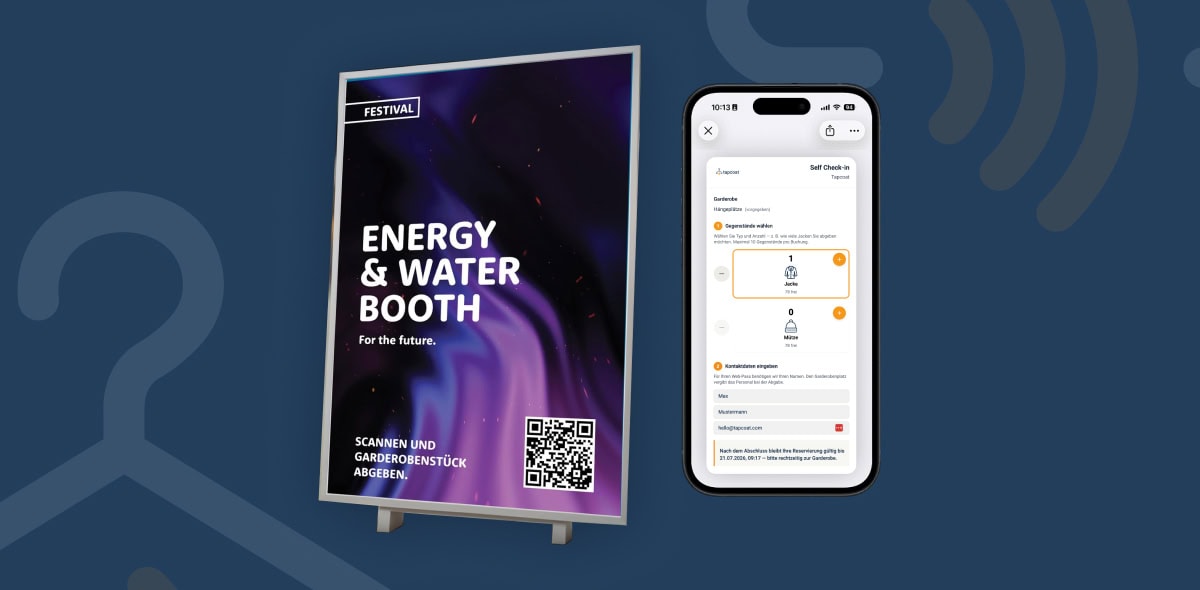


The intuitive app interface
The Tapcoat app is deliberately lean and focused on the essentials. Staff shouldn’t have to click through complicated menus in the stress of event operations. Every action that comes up frequently at the cloakroom can be reached in three taps or fewer.
Home screen after login
After login, the app shows the home screen with the ongoing events the person has been given access to. From here, staff first select the active event and then the cloakroom they are working at.
If there is only one active event with just one cloakroom, the app skips this selection automatically and goes straight to the main work screen.
The main work screen
The main work screen shows two key actions:
- Check-in — for checking in a guest and accepting their items
- Checkout — for checking out a guest and handing back their items
Both actions appear as large, clearly visible buttons so that staff find the right function immediately, even in poor lighting or under time pressure.
Available capacity display
During operation, the app continuously shows how many hanger locations are still available. As soon as the number of free hanger locations falls below the configured threshold, a warning appears automatically — clearly visible, without staff having to check actively.
Kiosk mode: the guest view
When a tablet runs in kiosk mode, the guest sees a completely different view than the staff do. The guest sees:
- A simple step-by-step guide to check-in
- The staff’s entries live — that is, which items and how many are being recorded
- The QR code scan area for showing or scanning their own code
- The logo and branding of the organizer or venue
This guest view builds trust because guests see exactly what happens to their belongings — which significantly reduces questions at the counter.
Tip: Position the kiosk tablet so that guests can reach it easily and see the screen clearly — ideally upright on the counter, tilted slightly toward the guest. Staff work next to it on the smartphone.