Invite staff members quickly and easily
Every person who will work with tapcoat® gets their own personal account. There are no shared logins and no shared passwords. This makes sure it is always clear who carried out which actions in the app or dashboard and when — important for quality assurance, error analysis and internal responsibilities.
People with the Manager role invite new staff members. People with the Staff member role can’t invite anyone.
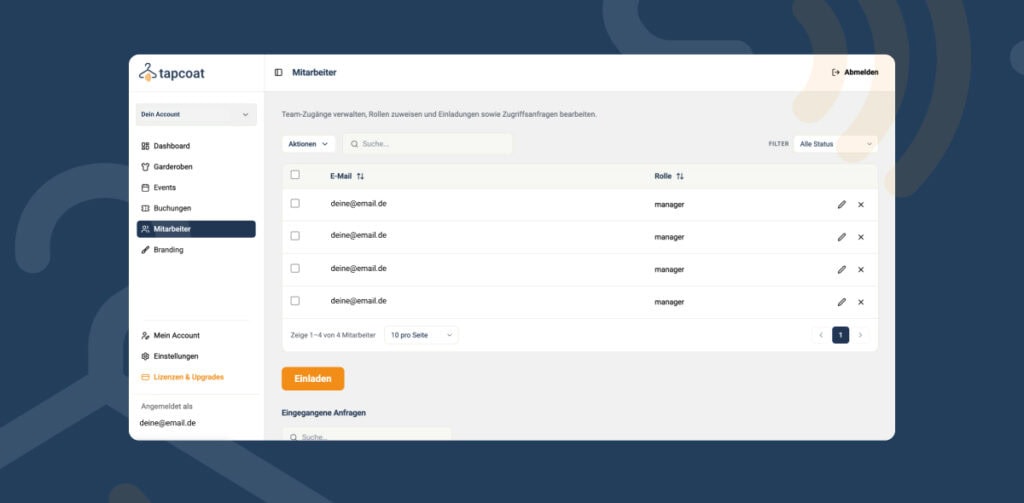
Where you invite staff members
In the dashboard, you find the Staff area in the left menu. There you see all people in your organization with their role. Below are the tables Sent invitations (invitations not yet accepted) and Incoming requests (people who asked for access themselves).
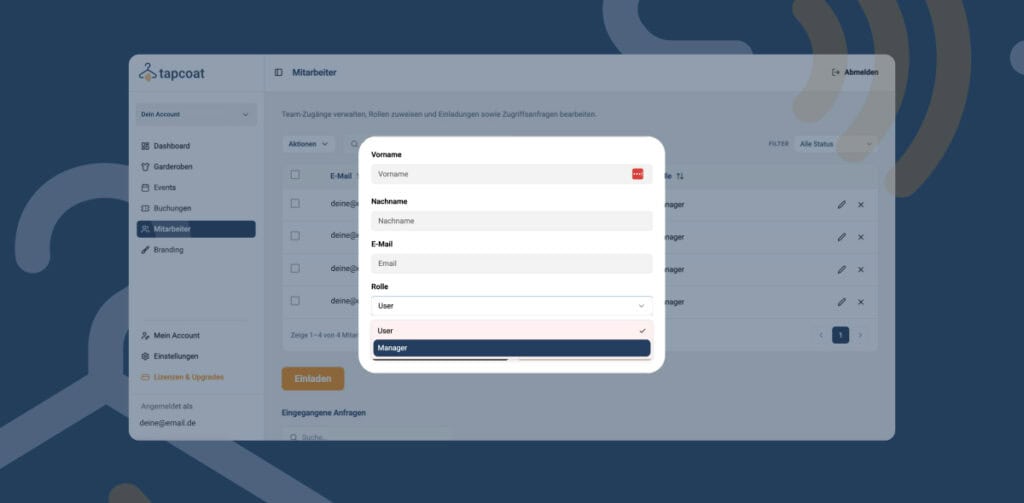
The invitation process step by step
- In the Staff area, click Invite.
- Enter the person’s First name, Last name and Email.
- Choose the Role: Manager or Staff member. You find details about the roles in the article Roles & permissions.
- Send the invitation. It appears under Sent invitations, and the person receives an email.
- If the person doesn’t have a tapcoat account yet, they sign up with exactly this email address and confirm it with the 6-digit code (see Creating an account). They don’t create their own organization in the process.
- They then accept the invitation: in the dashboard under Join organisation or in the app under Join an organisation, each time with Accept.
- They download the tapcoat app — available for iPhone and iPad in the Apple App Store and for Android devices in the Google Play Store — and log in.
- In the app, they see the events and cloakrooms they are invited to under Running events and choose themselves where they work. An event only appears from its start time.
Accept join requests
People can also ask for access themselves: they choose Request an invitation and enter the email address of a person with the Manager role. The request appears for you under Incoming requests. There you choose Accept request or Decline.
Requirements for staff devices
Staff need their own smartphone or tablet. Your team works with standard smartphones or tablets that you provide yourself. The following devices are supported:
- iPhones with iOS 15 or newer
- iPads with iPadOS 15 or newer
- Android smartphones and tablets with Android 10 or newer
A stable internet connection is required for operation. It doesn’t have to be fast: a scan only transfers a small amount of data, so normal Wi-Fi or mobile data is usually enough. You find details in the article Network & connection requirements.
Change a role
If a person with the Staff member role should get more rights, choose Make manager for them in the Staff area. They then get full administration rights for your organization.
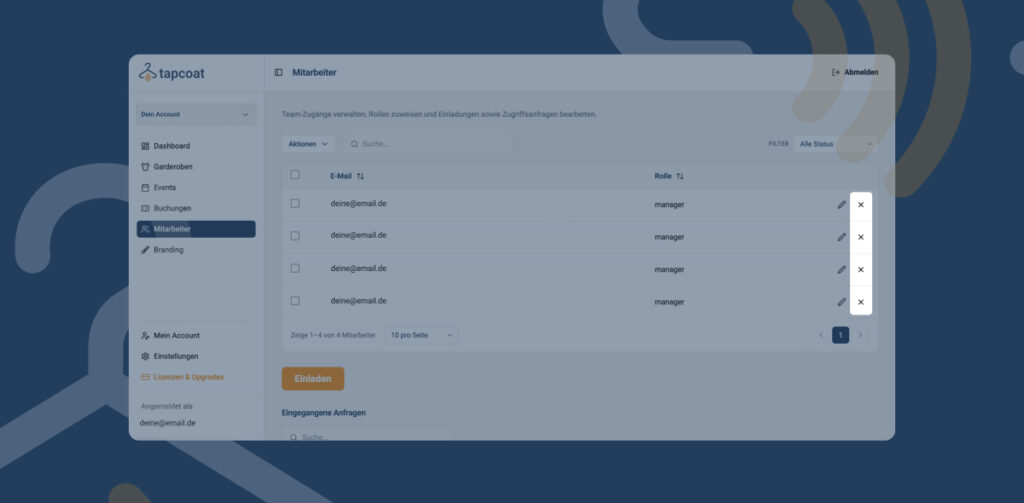
Remove staff members
If a person leaves the company or should no longer have access, choose Remove for them in the Staff area. Their access to your organization is revoked — both in the app and in the dashboard. You withdraw an invitation that hasn’t been accepted yet under Sent invitations with Revoke.